Service Accounts
Service accounts are specialized user accounts designed for automation, API integrations, and programmatic access to Sourcegraph, as opposed to using access tokens from regular users. Unlike regular user accounts, service accounts don't require an email address or password, cannot access the Sourcegraph UI, don't count towards a license's user limit and won't be part of any billing cycles.
Creating Service Accounts
Service accounts are created like regular user accounts, but with a few key differences.
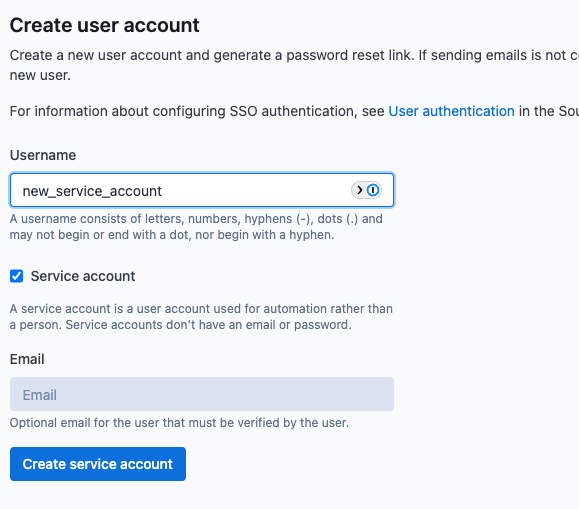
- Go to Site admin → Users & auth → Users
- Click Create User
- Enter a descriptive Username (e.g.,
ci-bot-scip-uploads,api-search-jobs) - Check the Service account checkbox
- Click Create service account
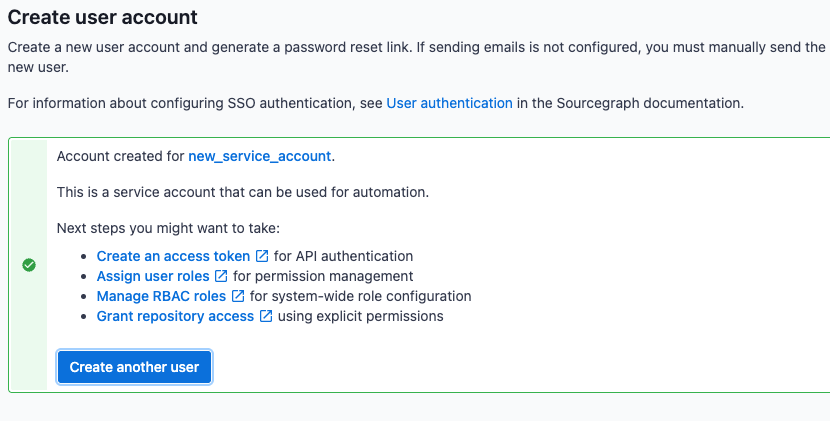
You'll be presented with some next steps you might want to take, like creating an access token, managing and assigning roles, and managing repository permissions.
- Service accounts are automatically assigned the "Service Account" system role
- They appear in the user list with "Service account" type designation
- By default, service accounts can only access public and unrestricted repositories
Managing Access Tokens
Service accounts can authenticate using either traditional access tokens or M2M (machine-to-machine) OAuth credentials.
M2M credentials are not the same thing as OAuth Apps created in
Site admin > OAuth clients. OAuth Apps are for flows where an application
acts on behalf of a user. M2M credentials are separate OAuth clients that are
bound to a service account and are the only way to use
grant_type=client_credentials.
Traditional Access Tokens
For detailed information about creating, managing, and using traditional access tokens, see:
M2M OAuth Credentials (Client Credentials Flow)
M2M credentials provide short-lived tokens via the OAuth client credentials flow expiring after 1 hour. Tokens issued by this flow represent the service account itself, not an end-user session.
If your instance's OpenID Connect discovery document lists client_credentials
in grant_types_supported, that means the Sourcegraph OAuth server supports
that grant globally. It does not mean a regular OAuth App can use it.
Creating M2M credentials:
- Navigate to the service account's user settings
- Go to Access tokens → M2M credentials
- Click Create M2M credential
- Provide a descriptive Name and optional Description
- Select scopes
- Click Create to generate client credentials (client ID and secret)
Important: Store the client secret securely - it won't be displayed again after creation.
Using M2M credentials:
BASH# Get an access token using client credentials
curl -X POST https://sourcegraph.example.com/.auth/idp/oauth/token \
  -H "Content-Type: application/x-www-form-urlencoded" \
  -d "grant_type=client_credentials" \
  -d "client_id=YOUR_CLIENT_ID" \
  -d "client_secret=YOUR_CLIENT_SECRET" \
  -d "scope=user:all"

# Use the returned access_token for API calls
curl -H "Authorization: Bearer ACCESS_TOKEN" \
     https://sourcegraph.example.com/.api/graphql
See OAuth Apps for a side-by-side explanation of user-delegated OAuth flows versus service-account M2M credentials.
Both authentication methods can be used to access Sourcegraph's GraphQL API and Stream API.
Role-Based Access Control (RBAC)
Service accounts integrate with Sourcegraph's role-based access control to provide fine-grained permission control.
System Roles
Service accounts are automatically assigned the Service Account system role, which provides basic API access permissions and standard search capabilities. The Service Account system role is applied to all service accounts and can be used to provide service accounts with a default set of permissions. For more specialized service accounts, it is recommended to create custom roles and assign them to service accounts as needed.
Managing Roles
Administrators can assign additional roles to service accounts through the user management interface. For detailed information on managing roles and permissions, see:

Repository Permissions
Service accounts respect repository permissions and access controls. For comprehensive information about repository permissions, see the Repository permissions documentation.
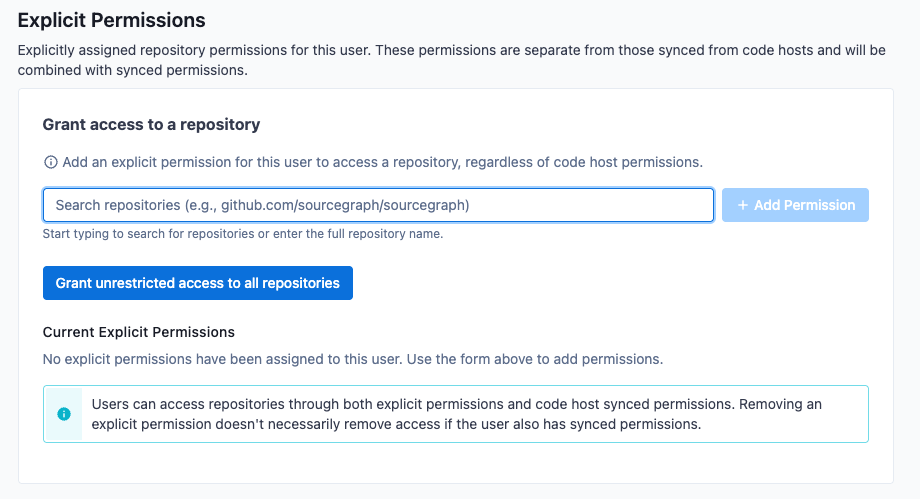
Service accounts by default can only access public and unrestricted repositories in Sourcegraph. You may explicitly grant fine-grained access to private repositories from the service account's user settings page, under the Repo permissions tab, or via the GraphQL API. In the Repo permissions tab, you can also grant service accounts access to all current and future repositories on Sourcegraph, regardless of their visibility, which is useful for service accounts that need to do things like perform search jobs, but admins should take care to ensure that the access tokens for these accounts are not shared with unauthorized users.